
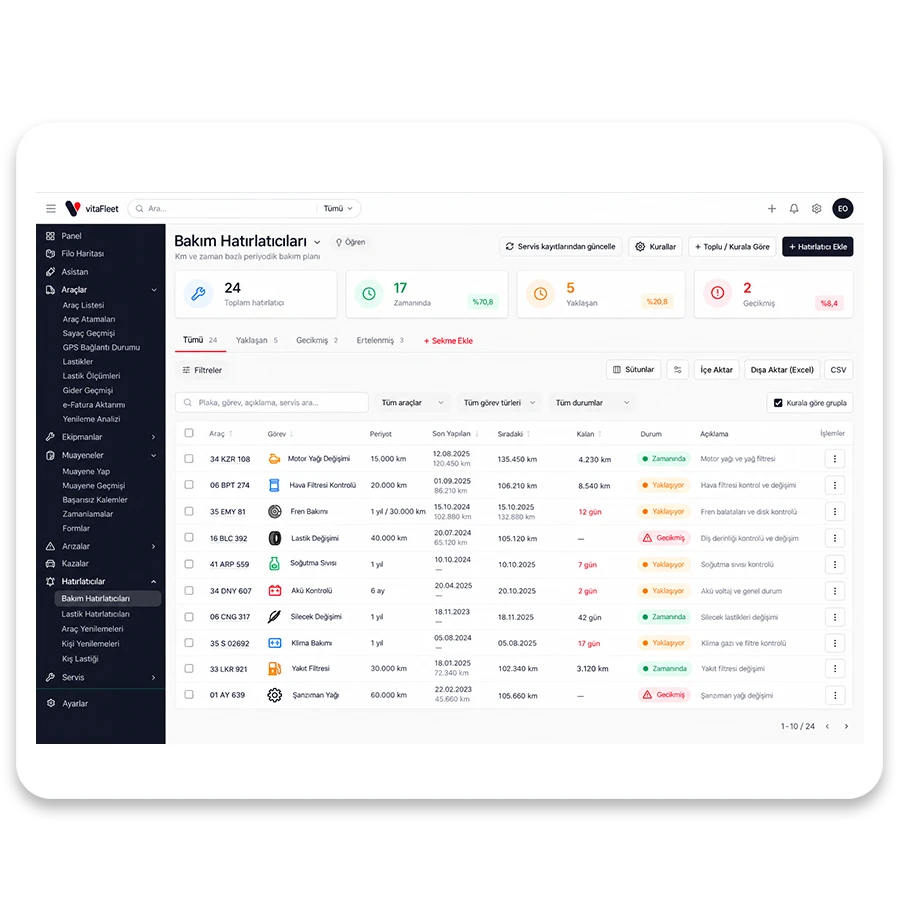
Maintenance Management

Maintenance reminders work with a mileage and a month interval; whichever comes first is the due point. For vehicles on the same plan you don't set up reminders one by one: applying a service schedule or a rule in bulk is enough. When a job comes due, it turns into a work order; when it's closed, it drops into service history and the reminder advances on its own.

vitaFleet โ€” Maintenance Management

0

Reminder statuses

Overdue, Due Soon, Scheduled

0

Work order statuses

Open, In Progress, Completed

0

Repair priority classes

Scheduled, Unscheduled, Emergency

0

Notification channel options

Email + in-app, email only, in-app only, off

What's inside Maintenance Management?

The screens that make up this solution and what you do on each, in order.

Screen

Maintenance Reminders

Tracks when periodic maintenance is due. Each record consists of a vehicle and a service task; the interval is defined by an odometer interval, a time interval, or both. The due point is calculated from the vehicle's current odometer and last service date; the item is marked Overdue, Due Soon or Scheduled. In the list you can turn on the Vehicle Type, Make / Model, Model Year and Group columns with โš™ and filter by the same fields. For older records whose reminder isn't up to date, there's an 'Update from service records' button.

Interval
Enter km, months, or both in the Time Interval and Odometer Interval sections. Whichever comes first is the due point.
Due-soon threshold
The Due Soon status begins once the km or day threshold is reached; the threshold is set separately in the reminder form.
Next due
If you want to set the first due point by hand, you can specify the next due date and odometer; otherwise the due point is calculated.
Notifications
The 'Turn on notifications' option in the form and the watchers decide who gets notified. If there are no watchers, the notification goes to the vehicle's watchers, and if there are none, to managers.

Screen

Bulk and Rule-Based Reminders

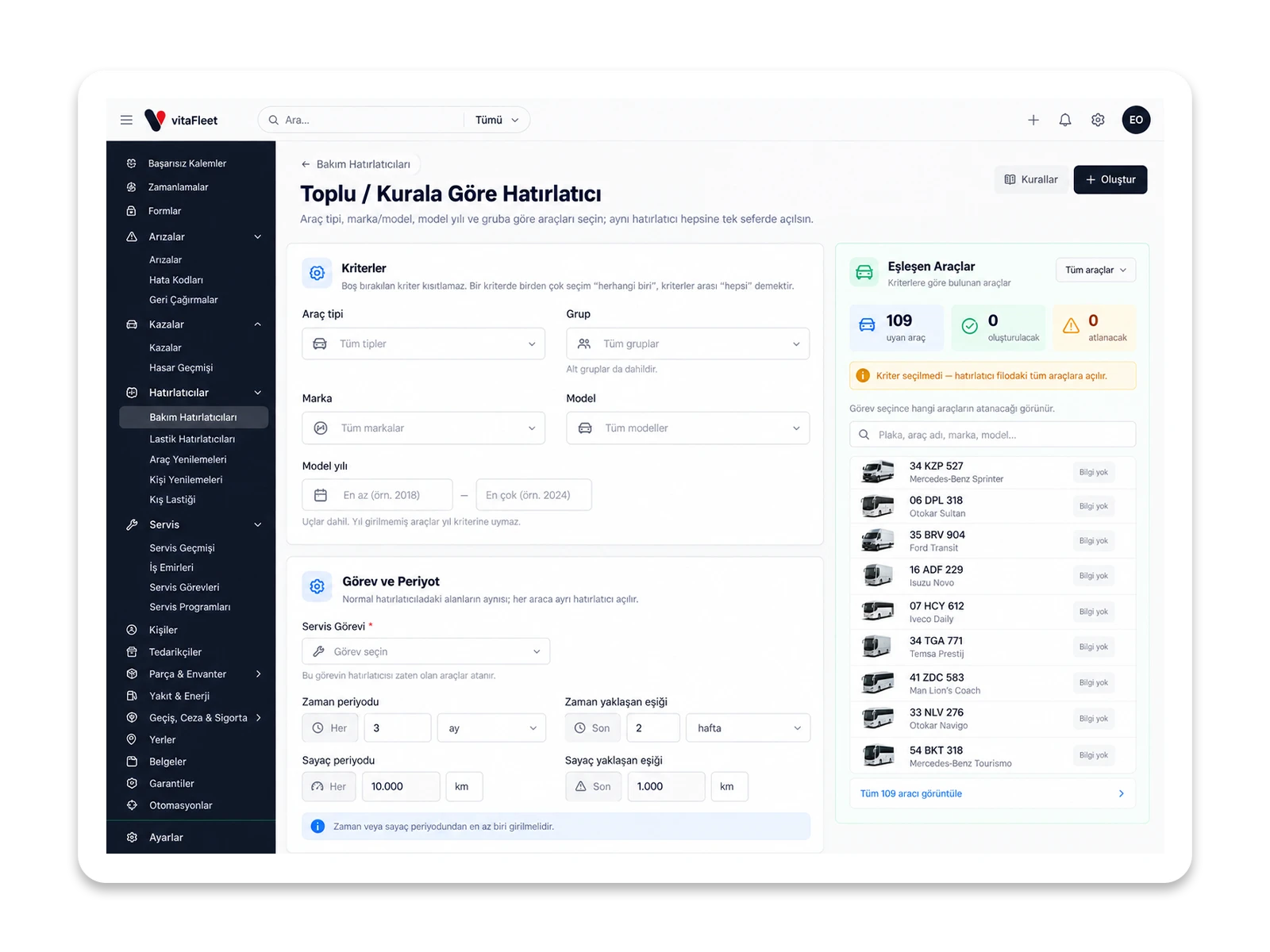
Creates the same reminder in one go by vehicle type, make, model, model year and group. When you pick the criteria, the number and list of matching vehicles appear instantly; the same task and interval are applied to all of them. If you save the rule, the reminder is also added automatically to vehicles that later match the criteria. For example, if you choose only Minibus as the type, all minibuses match; add a 2015โ€“2020 model year and the minibuses from those years match; add Sprinter as the model and only Sprinter minibuses match. Vehicles newly added or imported via Excel and GPS are included in the rule too.

Criteria
Vehicle type, make, model, model year range and group (including subgroups). Multiple selections within one criterion mean 'any of', and across criteria mean 'all of'.
Skipped vehicles
A vehicle that already has a reminder for the selected task is skipped; the result states how many vehicles were skipped. This way the same reminder is never created twice.
Rules page
A rule can be paused, applied now or deleted; when deleting, you're asked whether the reminders it created should stay.
Exclusions
Archived and sold vehicles are not included in rules; a vehicle with no model year doesn't match a year criterion.

Screen

Service Schedules

Gathers the tasks that belong to the same maintenance plan, with their intervals, in a single schedule. When you add a vehicle to a schedule, all of its reminders are set up automatically. Changing an interval in the schedule updates the reminders of all linked vehicles; so you don't edit every vehicle one by one. Each schedule opened from the Schedules list appears with its scope and task rows. Default intervals for service tasks are prefilled when you build a schedule.

Schedule definition
Enter the schedule name, description and scope; with the 'Schedule active' option you turn the schedule on or pause it.
Task rows
Each row has a service task, odometer interval, time interval and due-soon thresholds; units are chosen separately.
Applying to vehicles
For a vehicle added to the schedule, the task reminders open automatically; an update from one place reflects on all vehicles.
Compliance report
The Maintenance Compliance Report shows on-time and late completion per reminder; it can be narrowed with task and vehicle filters.

Screen

Service Tasks

A catalog of maintenance items such as oil change, air filter and tire replacement. Reminders, work order items and service records use the same task names; reports are grouped by these names. A default interval and an estimated duration and cost can be entered on a task. The task name is used in reports, reminders, work order items and e-Invoice matching, so naming needs to be consistent. To add a task, use 'Add task' on the Service Tasks screen.

Catalog
Give clear, consistent task names. The Service Task Usage report shows how many times each task was performed and its total cost.
Default interval
If you give a task a km or month interval, it comes prefilled when you set up a reminder; it can be changed per vehicle.
Estimate
Estimated duration and cost come prefilled on the work order; budget and actuals are compared.
e-Invoice matching
Invoice lines are first matched to your own task names; a built-in task that isn't defined yet is added during import.

Screen

Work Orders

The record of a maintenance or repair job to be done: items, labor, parts, supplier and amount. Status moves through Open, In Progress and Completed. A completed work order drops into service history and advances the maintenance reminders for the tasks in its items. In the work order form you can add records with '+ Define New' from the vehicle and supplier select boxes, and upload photos and documents. For work under warranty, you get a warning when opening the work order; this warning helps you avoid paying for covered work.

Details
Enter the vehicle, status, issued by, assignee, supplier, planned and actual start and end dates, and start and end odometer.
Priority class
Repair Priority Class classifies the job as Scheduled, Unscheduled or Emergency. A planned-start reminder is optional.
Items
Each item is a service task, labor and parts line. A part added from stock is deducted from stock; amounts are stored including VAT.
Breakdowns and invoice
Breakdowns are linked to the work order and close together with it when it's completed. Invoice number, PO number and ETTN (e-Invoice unique ID) are kept for accounting reconciliation.

Screen

Service History and Last Actions

The record of completed maintenance and repairs. It is created when a work order is completed or when a service invoice is imported from e-Invoice as a service record. Because every item is linked to a service task, the question 'when was the air filter last changed' is answered directly; the Last Actions report shows this by plate. Completed work orders and their costs are listed in the Service History report in the Reports section with vehicle, supplier and date filters. The Service History tab on vehicle detail shows the same records for a single vehicle, with each item's task and amount.

Source
A service record is created when a work order is completed or when 'Service record' is chosen during an e-Invoice import; items are matched to service tasks.
Last actions
The report gives, per plate and action, the last date, the km at which it was done and the time elapsed since.
Odometer reading
The odometer entered in a service record also updates the vehicle's current odometer; a reading that goes backward is not accepted.
Overdue maintenance
The Overdue Maintenance report in the Reports section lists reminders past due, with task, vehicle and status filters.

Due tracking

How a due point works, from interval definition to the nightly notification

A fleet manager opens an oil change reminder for a vehicle and enters both an odometer interval and a time interval. The system calculates the due point from the vehicle's current odometer and last service date; whichever comes first is used. For a vehicle working in the city, months usually come first; on long hauls, km does. As the odometer advances through fuel, service and inspection records, the due point is recalculated. When the threshold is reached the item becomes Due Soon, and when the due point passes it becomes Overdue and triggers a nightly notification. The notification goes to the reminder's watchers; if there are none, to the vehicle's watchers; and if there are none, to managers. When the job is closed, the reminder advances. In the list you can turn on the Vehicle Type, Make / Model, Model Year and Group columns with โš™ and filter by the same fields. For older records whose reminders are out of date, there's an 'Update from service records' button.

  • Dual interval. Km and months are defined together; whichever comes first is the due point, so you don't need to track the two separately.

  • Three statuses. Overdue, Due Soon and Scheduled appear separately in the list; overdue and due-soon items generate nightly notifications.

  • Notification chain. If a reminder has no watchers, the vehicle's watchers are notified, and if there are none, organization managers; you can choose the watcher yourself.

  • Vehicle owner. Making a vehicle's owner a watcher sends due notifications straight to the person following the job, instead of to managers.
Bulk application

Open the same maintenance plan on the right vehicles in one go

Say a fleet has a shared maintenance plan for Sprinter minibuses with model years between 2015 and 2020. In the '+ Bulk / By Rule' screen, the manager chooses Minibus as the vehicle type, 2015โ€“2020 as the model year and Sprinter as the model; the number and list of matching vehicles appear instantly. They pick the task and interval and apply. Vehicles that already have the reminder are skipped, and the result states how many were skipped. If they save the rule, the reminder opens automatically on matching vehicles that arrive later through Excel or GPS. To manage the whole plan as a single package, they use a service schedule. Archived and sold vehicles are not included in rules; a vehicle with no year doesn't match the model year criterion. That's why it helps to check the preview list before applying.

Bulk reminder preview

Bulk reminder preview

  • Instant preview. As you choose criteria, the number of matching vehicles and the vehicle list update instantly; before applying, you see which vehicles will be affected.

  • Saving the rule. A saved rule also applies to vehicles that are newly added or later start to match the criteria.

  • Manage the rule. On the Rules page a rule is paused, applied now or deleted; when deleting, you're also asked whether the reminders should stay.

  • Updating via schedule. When you change an interval in a service schedule, the reminders of all vehicles linked to the schedule are updated; no one-by-one editing is needed.

Work order flow

Maintenance that comes due is closed with a work order

When a manager sees an item in the overdue maintenance list, they open a work order for the vehicle; they choose the supplier or technician, set the priority class and enter the items. Each item consists of a service task plus labor and parts; a part added from stock is deducted from stock. When service is finished, the work order is set to Completed. At the same time the record drops into service history, and the maintenance reminders for the tasks in the items advance with the last date and km. Linked breakdowns close together. If the work was done while a significant part of the interval remained, managers receive an Early Action notification; the threshold can be changed in Settings. Amounts are stored including VAT; when a VAT rate is entered, the net and VAT breakdown is calculated. Invoice number and ETTN (e-Invoice unique ID) are kept on the record, and accounting reconciliation is done with them.

  • From service to reminder. A completed work order automatically completes the vehicle's maintenance reminder for the same task; the last date and km are updated and the due point is recalculated.

  • Early action notification. The default threshold is maintenance done with 20 percent or more of the interval remaining.

  • Past records. If a reminder is out of sync with older records, the 'Update from service records' button on the reminders screen uses past service records as the basis.

  • Invoice path. An invoice imported from e-Invoice as a service record also advances the maintenance reminder according to the tasks in its items.

Scope

What does this solution cover?

No separate modules: everything works in the same account with the same data.

  • Km and month intervals together
  • Overdue, due-soon and scheduled statuses
  • Bulk and rule-based reminders
  • Service schedules
  • Service tasks catalog
  • Work orders and items
  • Service history
  • Last Actions report
  • Maintenance Compliance Report
  • Watcher-based notifications

How it works

From setup to daily use

Define the tasks

Set up the service tasks catalog: give clear, consistent names such as oil change, air filter and tire replacement. If you like, enter a default km and month interval and an estimated duration and cost for each task.

FAQ

Both can be defined; whichever comes first is the due point. For vehicles working in the city, months usually come first; on long hauls, km does. The due point is calculated from the vehicle's current odometer and last service date, and is recalculated as the odometer advances. Equipment has a separate reminder screen.

Bring your fleet onto one screen in days

Request a demo and we'll prepare an environment for your fleet and help you migrate your data.