
Fuel and Energy

Bring fuel and charging purchases together in one place: every fill-up and charge is tied to a vehicle, a supplier and an odometer reading; consumption is calculated between two full fills. Reconcile against the UTTS statement (UTTS is Turkey's fuel-station vehicle recognition system), compare with the EPDK (Turkey's energy market regulator) dealer price on the day of purchase, and review suspicious fills with the reasoning behind each flag. Electric vehicles are tracked in the same layout using kWh/100km.

vitaFleet — Fuel and Energy

0

Anomaly rules

Tank overflow, second fill, excessive consumption, expensive purchase

0

Volume units

Liters, US gallons, UK gallons

0

Fill-up form sections

From Details to Location

0

Days of price history

Range filled in on first EPDK connection

What's inside Fuel and Energy?

The screens that make up this solution and what you do on each, in order.

Screen

Fuel History

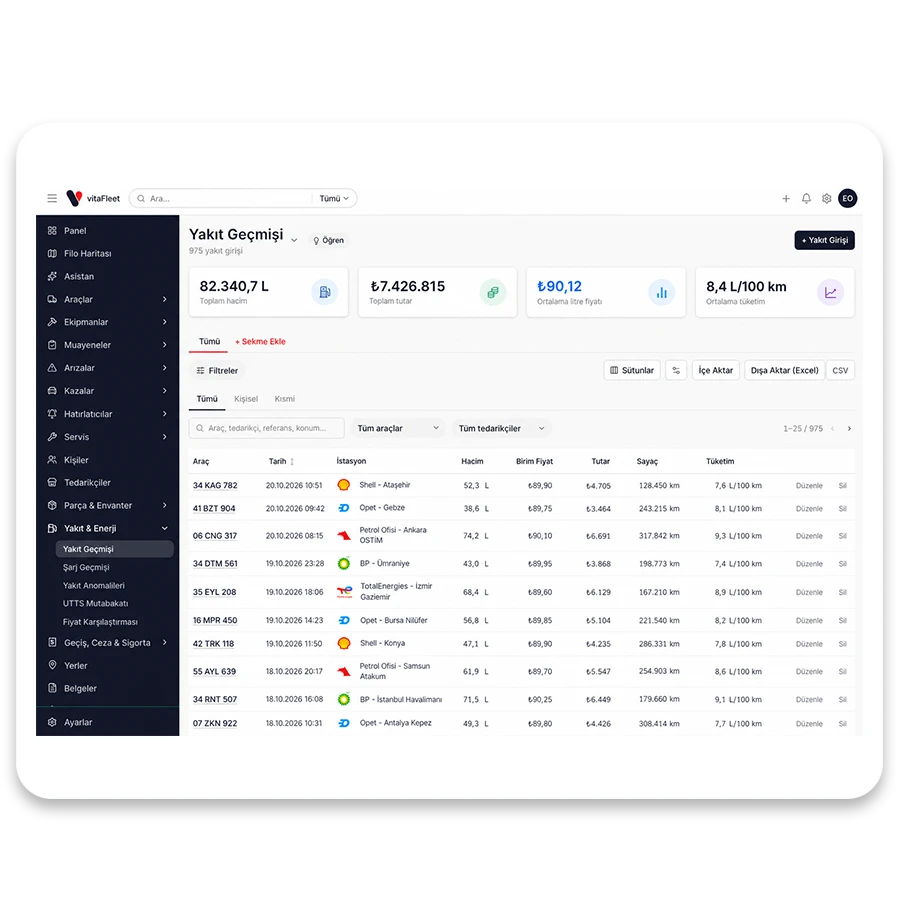
Every fuel purchase is a row in Fuel History. The entry form has Details, Quantity and Amount, Tax and Invoice, and Flags and Location sections; you enter date, supplier/station, reference, volume, total amount and odometer reading. The odometer at the fill-up updates the vehicle's mileage, so you don't need to enter the odometer separately. L/100km, cost per km and efficiency reports are calculated from these rows, and the supplier breakdown comes from the same record.

Fill-up form
Date, supplier/station, reference (invoice number, transaction ID), volume, total amount and odometer reading are entered in one form.
Volume unit
Liters, US gallons and UK gallons can be selected; the liter and amount fields accept Turkish decimal-comma notation (45,7 L, 1.250,50 ₺).
Partial fill
Mark a purchase where the tank wasn't filled completely as a Partial fill; that record is left out of the consumption average, so the calculation isn't thrown off.
Odometer update
The odometer reading at a fill-up updates the vehicle's current mileage; a reading that goes backward is not accepted.

Screen

Charging History

Charging sessions for electric vehicles are kept on the same logic as fuel. A record has the vehicle, date, supplier, charging station, duration (min), odometer reading, and start and end percentages. Consumption is read as kWh/100km; this is the equivalent of L/100km on a fuel vehicle. Energy cost merges into the same cost reports as fuel; because a kWh price and a liter price aren't directly comparable, the comparison is made on cost per km. Charging records can also be entered in the field from the mobile app.

Charging fields
Vehicle, date, supplier, charging station, duration (min), odometer reading, and start % and end % values are entered.
kWh/100km
The equivalent of L/100km on a fuel vehicle; electric vehicle consumption is tracked in the same layout.
Fair comparison
A kWh price and a liter price aren't directly comparable; make the comparison from the cost per km report.
Personal use
A charging record can be marked as Personal use.

Screen

Fuel Anomalies

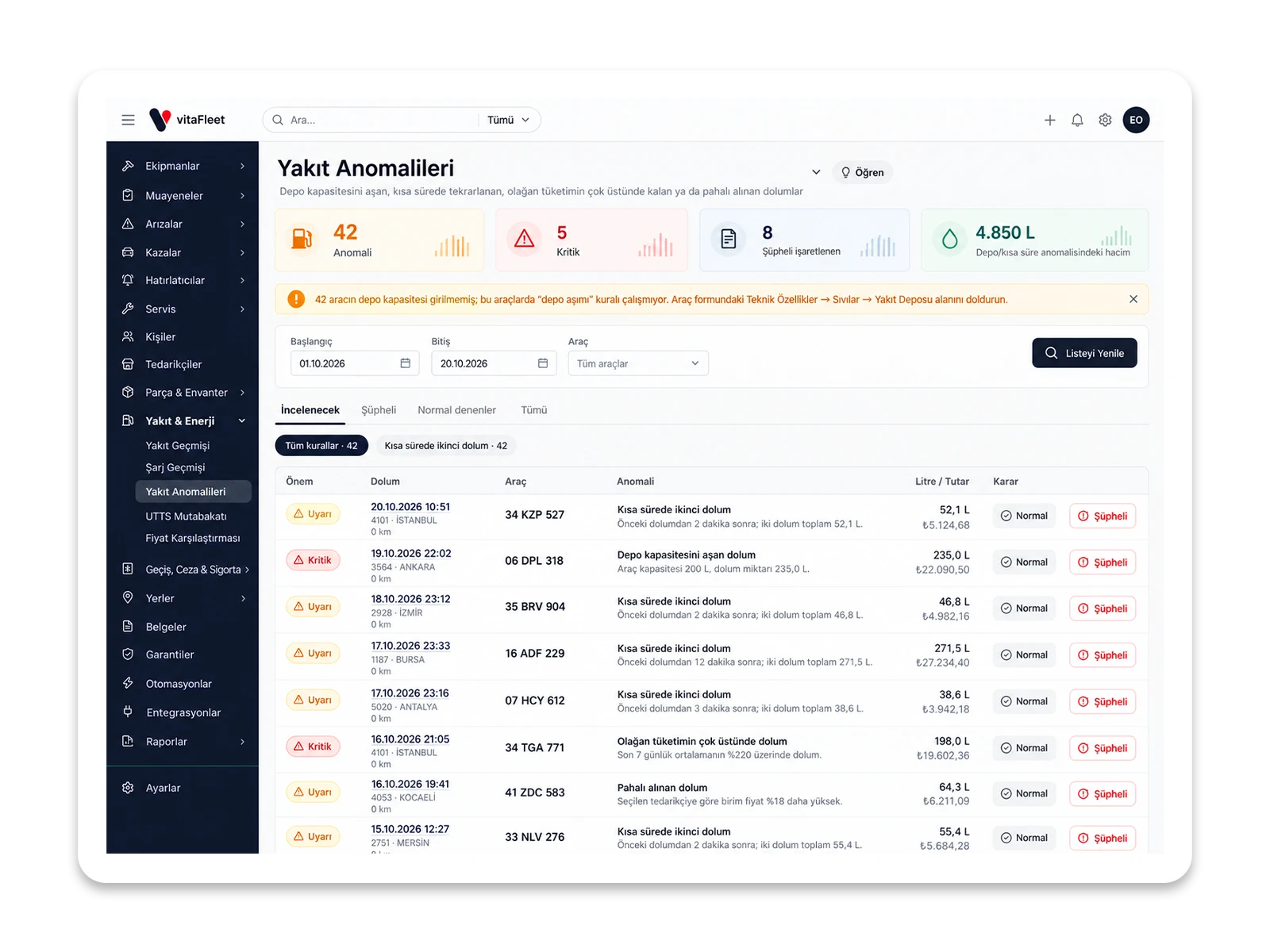
Fuel Anomalies automatically flags suspicious fill-ups and shows each one with the rule that triggered it and its reasoning. There are four rules: tank overflow, a second fill in a short time, excessive consumption and expensive purchase. You mark each anomaly as Normal or Suspicious; those marked normal drop off the To Review list, and suspicious ones are gathered in a separate tab. The decision is per fill and per rule; another rule on the same fill is evaluated separately. Fills marked Personal don't enter any rule.

Tank overflow
If a fill exceeds tank capacity by more than a 5 percent margin, it's critical; capacity is read from Technical Specifications on the vehicle form.
Second fill in a short time
If a vehicle gets a second fill within 6 hours and the total exceeds the tank, it counts as critical.
Excessive consumption
If L/100km between two full fills exceeds 1.35 times the vehicle's usual consumption, it's a warning; above 1.7 times, it's critical.
Expensive purchase
If the unit price is 5 percent above the EPDK price on the day of purchase, it's a warning; 15 percent above, it's critical.

Screen

UTTS Reconciliation

UTTS Reconciliation compares the UTTS (Turkey's fuel-station vehicle recognition system) statement with your fuel records. The statement is imported with Upload statement, columns are matched with a wizard, and rows are linked to vehicles through the UTTS number on the vehicle record. Matched rows count as reconciled with fuel history; purchases that appear on the statement but not in your records, or whose amount differs, stay in a separate list. This way a missing fill-up or an inconsistent purchase becomes visible before the period closes, and no row quietly disappears.

Statement upload
The statement file is uploaded and the provider's columns are matched with the wizard.
Linking to vehicles
Rows match on the UTTS tag number on the vehicle record; a vehicle with no number entered can't be linked.
Difference list
Purchases that are on the statement but not in your records, or whose amount differs, are listed; nothing disappears quietly.
Link to fuel record
Matched rows count as reconciled with the record in fuel history.

Screen

Price Comparison

Price Comparison compares each fuel purchase with the published dealer price on the day of purchase and lists expensive fills as deviations. The reference price comes automatically from EPDK Fuel Prices connected under Integrations; the nationwide daily dealer selling price for diesel, gasoline and LPG is pulled in, and the last 90 days are filled in on first connection. You can also upload a price list from Excel. To compare what was paid at which station, use the station-based fuel report.

EPDK integration
The nationwide daily dealer selling price for diesel, gasoline and LPG arrives every day; the last 90 days are filled in on first connection.
Price from a file
A price list can be imported from a file; if you upload province-based prices, the comparison is made against them.
Deviation list
Fills paid above the average are listed as deviations; you can see which purchase was flagged and why.
Station-based report
The station-based fuel report compares what was paid at which station.

Screen

VAT and Invoice Fields

The Tax and Invoice section of the fuel form exists for accounting reconciliation. The total amount is entered including VAT and stored including VAT; when a VAT rate is entered, the net amount and VAT breakdown are calculated. The invoice number and the e-Invoice ETTN (unique e-Invoice ID) are attached to the record, while the Reference field holds your own tracking value, such as an invoice number or transaction ID. The VAT report in the Reports section totals this breakdown by period, and matching in the accounting export relies on these fields.

Amount including VAT
The total amount is stored including VAT; when the rate is entered, the net and VAT amounts are calculated separately.
Invoice number and ETTN
The e-Invoice ETTN and the invoice number are written to the record for accounting reconciliation.
Reference field
The Reference field holds your own tracking value, such as an invoice number or transaction ID.
VAT report
The VAT report in the Reports section totals this breakdown by period.

Actual consumption

From a fill-up to a consumption figure

Field staff or the fleet manager add a new fill-up in Fuel History. Vehicle, date, supplier/station, volume and total amount are entered; the liter and amount fields accept Turkish decimal-comma notation (45,7 L, 1.250,50 ₺). The odometer reading also updates the vehicle's current mileage, and a reading that goes backward is not accepted. If the tank was filled completely, the record stays as is; if not, Partial fill is marked. From the km difference between two full fills, the system calculates L/100km and cost per km by vehicle; when the odometer or record order gets broken, the Reset consumption flag restarts the calculation from that point. As a result, a vehicle's consumption, cost per km and fuel supplier are read from the same record; there's no need to calculate anything by hand.

  • Enter the fill-up. Enter date, station, volume, amount and odometer; Turkish decimal-comma numbers are accepted.

  • Separate the partial fill. A flagged record stays out of the average, so consumption doesn't come out wrong.

  • Read the figure. L/100km and cost per km appear in reports by vehicle.
Suspicious fill

From the anomaly list to a decision: how a fill is reviewed

The Fuel Anomalies screen scans fill-up records against four rules. The fleet manager opens the To Review list and reads, on each row, which rule was triggered and its reasoning: exceeding tank capacity by more than a 5 percent margin, a second fill within 6 hours, consumption above 1.35 or 1.7 times the usual, a unit price 5 or 15 percent above the EPDK price. If the fill really was a full tank, they mark it Normal; if it can't be explained, Suspicious. A record marked Normal drops off the list, and suspicious ones accumulate in a separate tab. For the result to be reliable, tank capacity must be defined and the odometer entered correctly. This way every suspicious fill gets a decision on record, along with the rule that flagged it, and you can look the decision up later.

Anomaly review tabs

Anomaly review tabs

  • Read the reasoning. Each anomaly is shown with the rule that triggered it and its reasoning.

  • Make a decision. Mark Normal or Suspicious; the decision is per fill and per rule.

  • Meet the prerequisites. The consumption rule works on vehicles with at least 4 full-fill measurements.

Statement matching

Read the UTTS statement and your records together

At month end, accounting or the fleet manager goes to the UTTS Reconciliation screen and opens Upload statement. A file is chosen and the columns are matched to your fields in the wizard. Each row is linked to a vehicle through the UTTS number on the vehicle record; a vehicle with no number entered can't be linked. On the results screen, matched purchases appear reconciled with fuel history, while purchases that are on the statement but missing from your records, or whose amount differs, stay in a separate list. You close the list by adding the missing fill-up or correcting the amount; so differences surface before the period closes. After reconciliation, fuel history and the statement tell the same story; when moving to accounting, the amounts are ready along with the invoice number and ETTN fields, and you can check that no unmatched row remains.

  • Define the number. The UTTS tag number must be filled in on the vehicle record, or the row won't be linked to a vehicle.

  • Match the columns. The provider's own column layout is tied to your fields with the wizard.

  • Close the difference. You close unmatched rows by adding a record or correcting it.

Scope

What does this solution cover?

No separate modules: everything works in the same account with the same data.

  • Fuel fill-up records
  • Electric vehicle charging records
  • L/100km and kWh/100km consumption
  • Cost per km
  • Partial fills and consumption reset
  • Fuel anomaly review
  • UTTS statement reconciliation
  • EPDK dealer price comparison
  • VAT, invoice number and ETTN fields
  • Station-based fuel report

How it works

From setup to daily use

Prepare the vehicle

Enter the UTTS number on the vehicle record and the tank capacity under Technical Specifications. Anomaly rules and statement matching rely on these two fields; if they're missing, the rule or the row can't be tied to the vehicle.

FAQ

No. You mark that purchase as a Partial fill; because consumption is calculated from the km difference between two full fills, this record is left out of the average. If you don't mark it, consumption comes out wrong. The odometer also needs to be entered correctly, since a reading that goes backward is not accepted.

Bring your fleet onto one screen in days

Request a demo and we'll prepare an environment for your fleet and help you migrate your data.