
Automation

Write recurring follow-up work as a rule: which record, which event, which conditions, and what to do. vitaFleet runs the rule at regular intervals, then updates a field, posts a comment on the record, or sends an email. Nightly notifications and maintenance reminder rules take over similar routine work. Every run is written to the history.

vitaFleet — Automation

0

Trigger record types

Fault, work order, service record, fault code, vehicle, traffic fine, and toll crossing

0

Trigger events

When created, when updated, both, when archived

0

Action types

Update field, add comment, send email

0

Notification types

Each one has its own channel setting

What's inside Automation?

The screens that make up this solution and what you do on each, in order.

Screen

Automation list

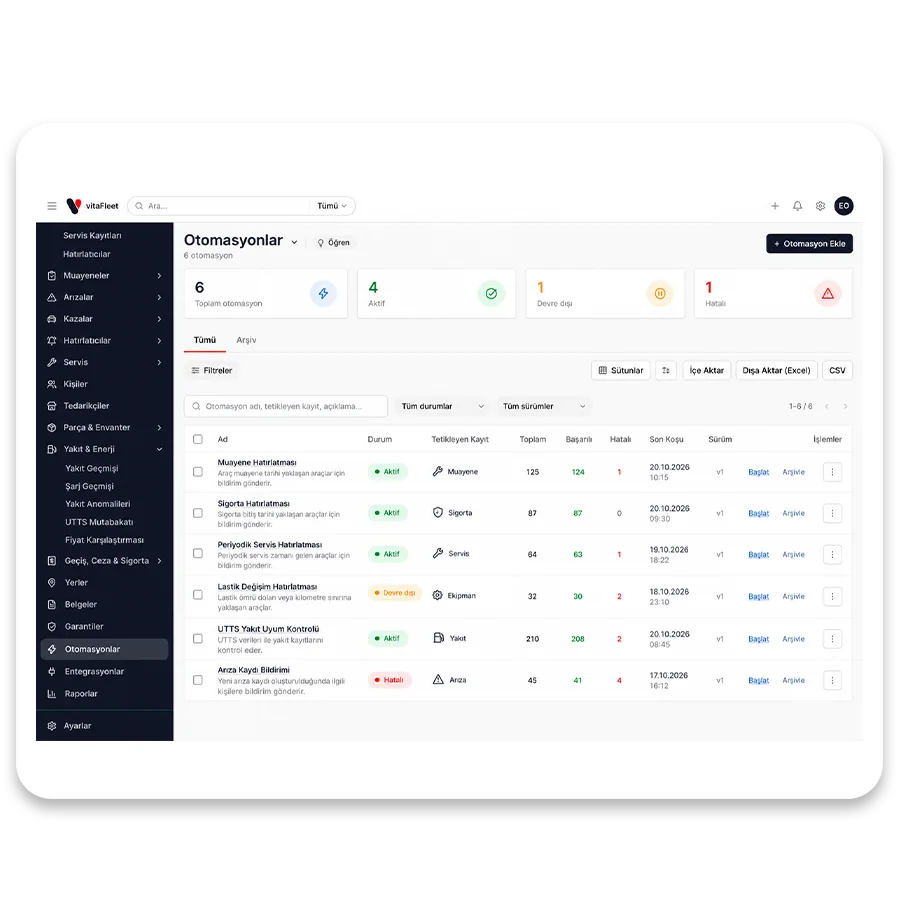
The Automations screen lists all rules in one table. Each row shows the name, status, trigger record type, total, successful, and failed run counts, last run time, and version number. The All and Archive tabs separate active rules from archived ones, and a single button creates a new rule. Archiving a rule disables it automatically. To turn a rule on or off, use the Enabled checkbox on its detail page.

Table with counters
The Name, Status, Trigger Record, Total, Successful, Failed, and Last Run columns show a rule's health at a glance.
Version number
The version increases each time the rule is saved; a label like v2 or v3 in the list shows how many times the rule has been updated.
Archive tab
An archived rule is disabled and does not run; it moves out of the main list into the Archive tab.
Enabled switch
A new rule starts off: no record is processed until you tick the Enabled checkbox, so an untested rule never runs.

Screen

Trigger and conditions

The rule editor has three blocks: Trigger, Conditions, and Actions. In the trigger, you pick the record type and the event. Conditions use the same model as the filters in the vehicle list, so the records you filter in a list are the same records the automation catches. If no condition is written, the rule runs on every record of that type. Conditions can be a single rule or nested groups of rules, and the field list adjusts when you change the record type.

Seven record types
Fault, Work Order, Service Record, Fault Code, Vehicle, Traffic Fine, and Toll Crossing (highway/bridge) records can all trigger a rule.
Four events
Choose one: when created, when updated, both, or when archived. The event determines when the rule runs.
Same conditions as list filters
Build a single condition or nested groups of conditions; they use the same field names as the list filters.
Unconditional warning
If no condition is added, the editor shows the prompt "+ Add condition (optional — without one it runs on every record)".

Screen

Actions

Actions define what happens when the conditions are met, and they run in order. There are three action types: update a field on the record, post a comment on the record automatically, and email a summary of the record to an address you specify. If a record type can't take comments, the editor doesn't offer the comment action, so you never see an option that wouldn't work. A failed action doesn't hide the others; each action's result is written separately to the run history.

Update field
Writes the value you enter into the selected field of the record; the result appears in the run history with the field label and value.
Add comment
Posts a comment on the record with the author "Automation · rule name"; offered only for record types that accept comments.
Send email
Recipient, subject, and body are entered; the email carries the record's title, the rule name, and an Open record link.
Check before saving
If the name, record type, trigger, at least one action, or a valid email address is missing, vitaFleet tells you what is missing.

Screen

Run history

The Run History section at the bottom of a rule's detail page lists every evaluation with its time, record, status, and details. There are three statuses: Ran, Condition not met, and Error. An Error row says why the action didn't run, so you never have to guess whether the rule is working. The list shows the rule's last 25 evaluations, and each row also records the record type and the number of actions that ran.

Three statuses
Ran means the actions completed, Condition not met means the record didn't match the conditions, and Error means an action failed.
Error reason
If an action fails, the reason is written in the details column; for example, field not found or email could not be sent.
Record details
Each row carries the type and ID of the triggering record; you can trace, row by row, what the rule did on each record.
Consistent with counters
The Total, Successful, and Failed counts in the list come from the same runs, and they update with every run.

Screen

Notifications

A nightly job sends notifications about overdue or upcoming maintenance, renewals, and similar events to the right person. On the Notifications screen, you can filter to unread items, mark items as read or archive them, and click one to open the related record. You choose the channel for each event in Settings: in-app, email, both, or off. Types like critical fault and failed inspection are managed there too.

Twelve notification types
Overdue maintenance, critical fault, upcoming renewal, critical stock, tire alert, winter tire period, and others are each managed individually.
Four channels
For each type, you pick Email + In-app, Email only, In-app only, or Off.
Right recipient
A notification goes to the record's watchers first, then to the vehicle's watchers, and failing that to organization managers.
Daily digest
In the nightly run, emails can be combined into a single digest per recipient, so the same person doesn't get many separate emails in one day.

Screen

Maintenance reminder rules

On the Bulk / By Rule screen, vehicles that match your criteria (vehicle type, make, model, model-year range, and group) are listed instantly, and the same service task is created for all of them. If you save the rule, reminders are created automatically for new vehicles that later match the criteria. Tire Rules use the same logic to set different tire thresholds by vehicle. You never have to set up a reminder by hand for each new vehicle.

Five criteria
Vehicle type, make, model, model-year range, and group are selected; an empty criterion doesn't restrict the match, and a vehicle must meet all the criteria you fill in.
Live preview
The number and list of matching vehicles appear instantly as you change criteria; the number you see on screen is the number of reminders created.
Automatic for new vehicles
If the rule is saved, a reminder is created automatically for any vehicle imported via Excel or GPS, or edited later, that matches the criteria.
Pause, apply, delete
On the Rules page, a rule can be paused, applied now, or deleted; when you delete a rule, you choose whether its reminders stay.

Everyday flow

When a critical fault is opened, email the owner automatically

The fleet manager creates a new rule on the Automations screen and selects Fault as the record type. The trigger is When created, and the condition is that the Priority field is Critical. For the action, they choose Send Email and enter the recipient's address, a subject, and a short note. Once they save the rule and tick the Enabled checkbox, every critical fault reported from the field is caught in the next automation run, and an email with the fault summary, the rule name, and an Open record link goes to the owner. The manager checks Run History and confirms the Ran status; non-critical faults are listed as Condition not met and are not counted as errors. Because the rule only applies to faults created after it is enabled, it doesn't touch past records.

  • Condition. Faults whose Priority field is Critical are caught; other faults are logged as Condition not met and are not counted as errors.

  • Action. The Send Email action takes a recipient address, subject, and body; an invalid address is flagged before saving.

  • Verification. Run History shows each row's status and action details; the details include the address the email was sent to.

  • Safe start. The rule starts off and doesn't scan history; only faults created after it is enabled are processed.
Field and comment

When a work order is entered, post an automatic comment and update a field

You can set up a rule with the When updated trigger on work order records. Write the condition on the work order's fields the same way you would build a list filter; for example, to catch work orders in a certain status. Actions run in order: Update Field first writes a value to the selected field, then Add Comment posts a note on the record with the author Automation · rule name. When the service team opens the work order, they see this note in the comment stream and don't have to wonder why the record changed. If an action fails, the run is recorded as Error, the details say which action failed and why, and the Failed count goes up. The rule never silently leaves work half-done; problems stay visible.

Automation comment on a work order record

Automation comment on a work order record

  • Sequential actions. Update field and add comment run in the order you set; their results appear together in the run details.

  • Readable trail. The comment's author is Automation · rule name, so it is always clear who posted the note.

  • Error visibility. A failed action is recorded as an Error row with its reason, so work is never silently left half-done.

  • Counters. Successful and failed run counts update in the rule list, and the total is always the sum of the two.

Safe operation

A rule with a broken condition won't run on every record by accident

The biggest risk in automation is a condition being silently ignored, so the rule fires on every record. vitaFleet explicitly prevents this: if a condition's field or operator can't be read, the rule does not run and the reason is written to the log. A saved rule starts off, processes changes only from the moment it is enabled, and does not scan past records. Each rule keeps its own marker for the last change it processed, so one rule's error doesn't stop the others. The engine reads changes from the source table's change timestamp, which is why it works on types like faults, work orders, and service records. The trade-off is that processing isn't instant: it happens within one run interval, so a rule produces its result a few minutes after the record changes. Even if an action fails, the marker advances, so a single bad record can't hold a rule back indefinitely.

  • Unreadable condition. The rule does not run and the reason is logged, so it can't end up unconditional and fire on every record.

  • Doesn't touch history. Records from before the rule was enabled are not processed; only later changes are evaluated.

  • Independent rules. One rule's error doesn't stop the others; each rule advances with its own marker.

  • Delayed result. The result appears at the end of the run interval, not at the moment of the change; a wait of a few minutes is normal.

Scope

What does this solution cover?

No separate modules: everything works in the same account with the same data.

  • Trigger: created, updated, archived
  • Triggers on seven record types
  • Same condition model as list filters
  • Update field action
  • Automatic comment
  • Send email action
  • Run history and error reasons
  • Rule version number
  • Nightly notifications and channel preference
  • Bulk maintenance reminders by rule

How it works

From setup to daily use

Choose the trigger

Create a new rule on the Automations screen and set the record type and event. Name the rule; it starts off, and no record is processed until you turn it on. The editor warns you about any missing fields.

FAQ

No. A rule processes changes made from the moment it is enabled; it doesn't scan past records or change them in bulk. This prevents emails from going out for old records and stops fields from changing unexpectedly, so you can switch on a new rule without worrying about your history.

Bring your fleet onto one screen in days

Request a demo and we'll prepare an environment for your fleet and help you migrate your data.