
Regulatory Compliance

Managing a fleet in Turkey means keeping track of many deadlines and records at once: inspection, insurance, authorization certificates, driver's licenses, HGS/OGS (Turkey's electronic toll systems), traffic fines, and winter tires. vitaFleet links these documents to vehicle and person records, sends notifications before they expire, and matches statements and fine records to the vehicle and driver. It doesn't guarantee compliance; it makes tracking and record-keeping easier.

vitaFleet — Regulatory Compliance

0

Vehicle document types

Inspection, traffic insurance/comprehensive, exhaust test, K authorization certificate, and vehicle card/permit

0

Person document types

Driver's license, SRC, psychotechnical, health report, and professional competency certificate

0

Tag fields on the vehicle

HGS tag no., OGS tag no., and UTTS serial no.

0

Notification channel options

In-app, email, both, or off

What's inside Regulatory Compliance?

The screens that make up this solution and what you do on each, in order.

Screen

Vehicle Renewals

A vehicle's time-bound documents are tracked in a single list. Each record has the vehicle, renewal type, document number, and expiry date, and a notification goes to the vehicle's watchers and managers before it expires. A policy or inspection report is attached to the record and also appears in the vehicle's documents. Expiry dates are read from the table, not left to anyone's memory. Because every record uses the same format, you can see which document expires when without checking vehicle by vehicle.

Ready-made types
Inspection (TÜVTÜRK, Turkey's national vehicle inspection), compulsory traffic insurance, comprehensive coverage, exhaust emission test, K authorization certificate (K-class road transport authorization), and vehicle card/route permit come ready-made in the list.
Form fields
Enter the vehicle, renewal type, document no., expiry date, upcoming threshold, owner, and comment; turn on alerts with the Enable notifications option.
Days remaining
The table shows Document No., Remaining, and Owner columns and filters by vehicle and type; expired items carry a status label.
Upcoming Renewals
This report in Standard Reports puts the whole fleet's vehicle and person documents, with expiry dates and days remaining, in one table.

Screen

Driver and Staff Documents

Drivers' and staff members' time-bound documents are linked to the person's record. For a driver's license, SRC (professional driver certificate), psychotechnical assessment, and health report, you enter an end date and attach a file, and a notification goes to the person and managers before it expires. A person's detail page shows all their documents and expiry dates together, and the list is sorted by expiry. You can spot a driver with an expired document from the list before they head out.

Ready-made types
Driver's license, SRC certificate, psychotechnical report, health report, and professional competency certificate come ready in the list.
Advance notice
Before a document expires, a notification goes to both the document holder and managers; choose the channel in Settings: in-app, email, both, or off.
Overview
The list is sorted by expiry with expired items on top, so you can see at a glance which driver's document needs renewing first.
File storage
Attach a scan of the document to the record; it also appears in the Documents list, linked to the person.

Screen

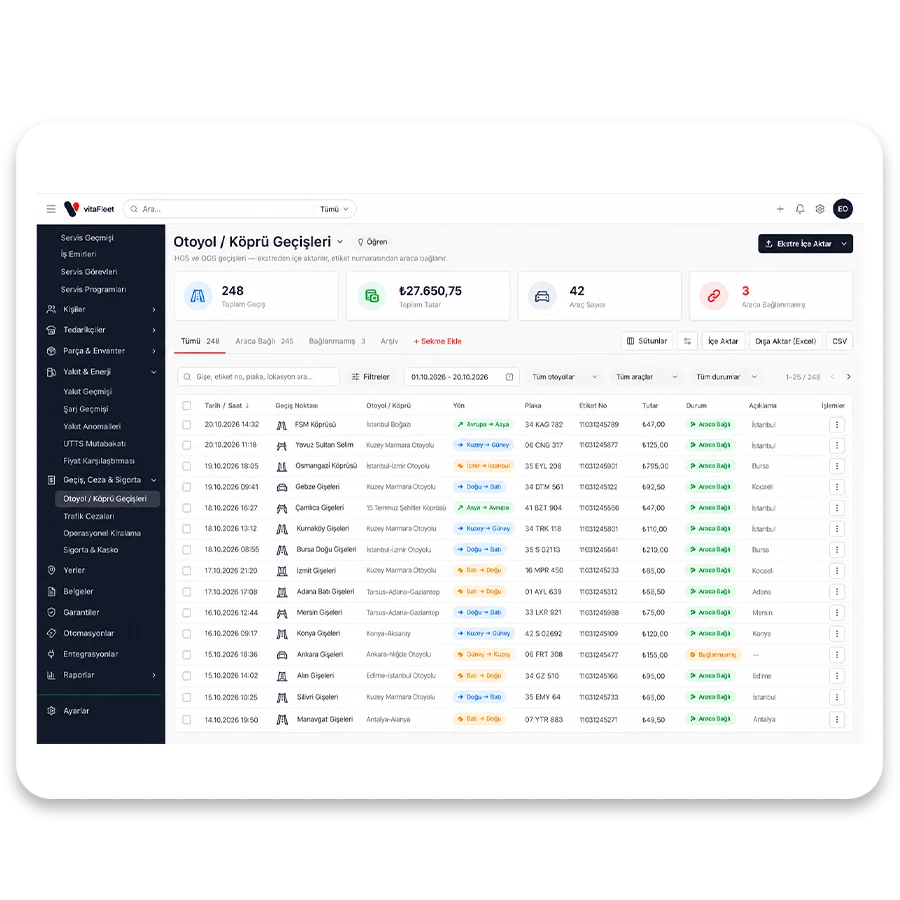
HGS and OGS Crossings

Uploading a statement links HGS and OGS toll crossing records to the vehicle and driver. The tag number on the vehicle card makes the match, and the driver is found from the vehicle assignment at the time of the crossing. Crossings appear in their own column in vehicle operating cost, and unmatched rows stay in a separate tab so they aren't overlooked. You upload the statement the same way every month, and crossings are recorded without hunting for vehicles by hand.

Statement upload
Upload a PTT/HGS or bank statement and map the columns; dates in dd.mm.yyyy format and amounts with decimal commas are read correctly.
Tag matching
The HGS tag no. and OGS tag no. fields on the vehicle form link a crossing to the vehicle; crossings for vehicles without a tag wait in the Unassigned tab.
Finding the driver
vitaFleet checks the vehicle assignment on the crossing date; if there is none, the crossing is recorded on the vehicle and the driver field stays blank.
Reflecting in cost
Crossing amounts go into a separate Toll column in the Operating Cost Summary, and the total count and amount appear above the list.

Screen

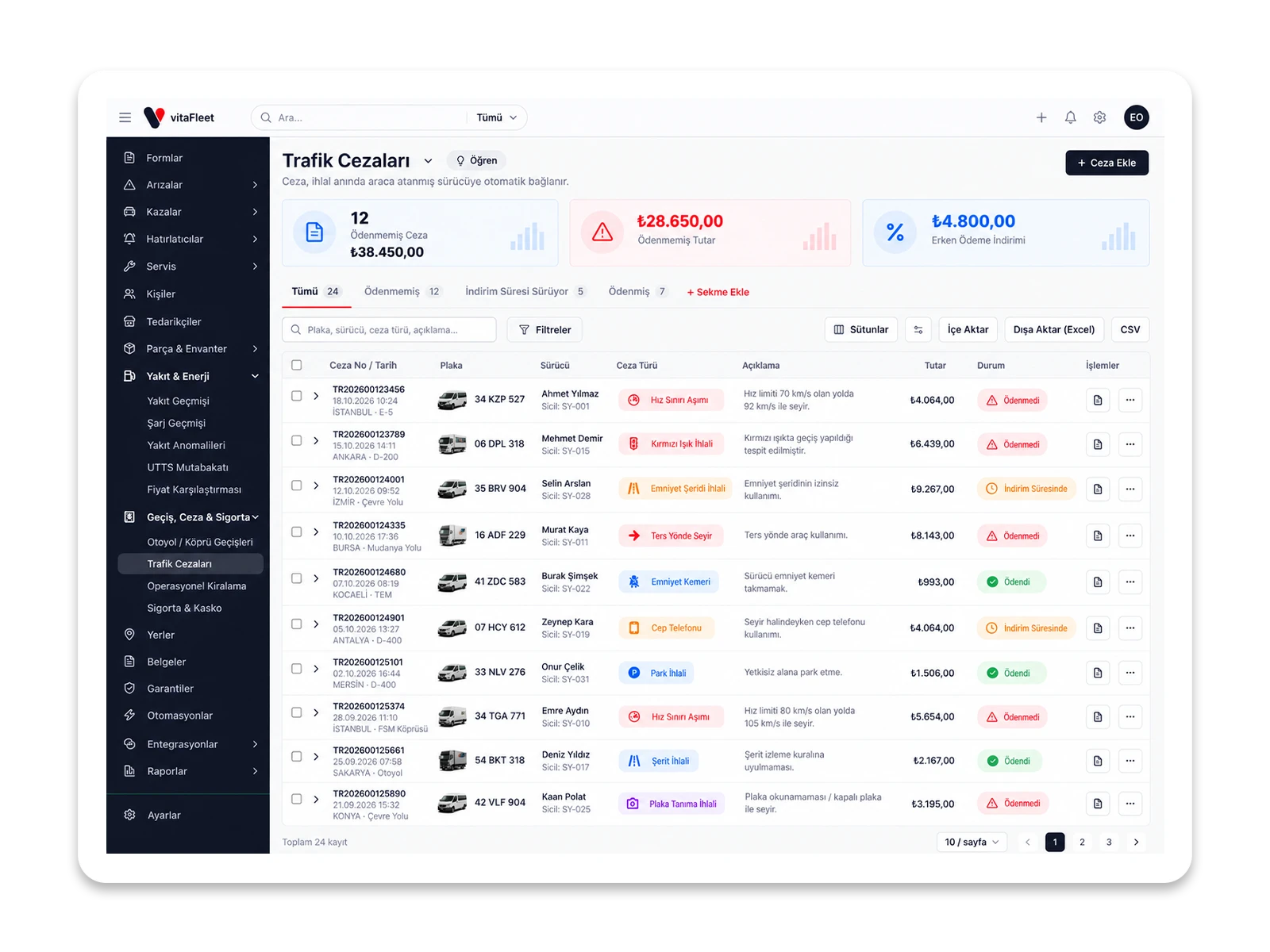
Traffic Fines

Fines issued to a vehicle are recorded with the violation date, notification date, article, penalty points, and amount. The driver is found from the vehicle assignment at the time of the violation, and fines passed on to the driver are flagged. Fields can be filled in from a photo of the notice, and if you enter a discount deadline, the list shows a warning as it approaches. Each fine stays tied to a vehicle, a known driver, and a record with a clear payment status.

Fill in from the notice
Take a photo of the fine notice, and the violation and notification dates, article, amount, discounted amount, and deadline are filled into the form automatically.
Driver matching
If you don't select a driver, vitaFleet finds the driver from the vehicle's assignment history at the time of the violation; the pass-on flag feeds the per-person fine report.
Payment status
Enter the status and payment date; the list filters by the All, Unpaid, and Discount Period Active tabs.
Vehicle cost
A fine record is linked to the vehicle and counted in vehicle cost and the fine report, so it never becomes an ownerless expense.

Screen

Winter Tire Tracking

Vehicles flagged as Winter tires required on the vehicle form are monitored during the mandatory period. The screen shows the vehicles in scope and how many are compliant or problematic; vehicles without suitable tires are listed and trigger a notification. You change the period in Settings, and tire measurements support the status with tread depth. The screen shows which vehicles aren't ready, so you can act before the deadline.

Requirement flag
You decide which vehicles are in scope by ticking the Winter tires required checkbox in the settings section of the vehicle form.
Period definition
Change the mandatory period under Settings → Organization; the current period appears in the screen header.
Compliance status
The Vehicles in Scope, Compliant, and Problematic boxes summarize the status for the period, and each vehicle has its own status label.
Notification
A winter tire period notification is sent as the period approaches and, during the period, for vehicles without suitable tires.

Screen

UTTS Reconciliation

Upload a UTTS statement (UTTS is Turkey's fuel-station vehicle recognition system), map the columns, and rows are linked to vehicles through the UTTS serial number on the vehicle. vitaFleet compares the statement with your fuel records and counts matches, mismatches, and purchases that appear on the statement but not in your records. Missing or extra records show up as numbers, and you can verify every row with a difference before you talk to the driver.

Statement upload
Import the statement from UTTS Reconciliation in the Fuel menu; on the mapping screen, you link the file's columns to fields.
UTTS serial no.
The UTTS serial no. field on the vehicle form links the row to the vehicle; purchases by vehicles where this field is empty are counted as Purchase without UTTS.
Four counters
The Matched, Mismatch, Unrecorded Purchase, and Purchase without UTTS boxes at the top of the screen show the status at a glance.
Difference from fuel record
Purchases whose amount or record differs are listed; open the related record in Fuel History and correct it.

Document tracking

Don't leave inspection and insurance dates to memory

When a vehicle record is created, the fleet manager enters the expiry date and document number in Vehicle Renewals for inspection, traffic insurance, comprehensive coverage, and the K authorization certificate, and attaches the policy or inspection report. They select the upcoming threshold and the responsible person, and tick Enable notifications. As the expiry date nears, a Renewal approaching notification goes to the owner and managers; for email, the daily digest combines items into one message, so there isn't a separate email for every item. The person who renews the document enters the new date and attaches the file, and the record stays current. The Upcoming Renewals report shows the manager the whole fleet's status in order of days remaining. The result is a document list where every renewal date is known, the file is tied to the record, and the owner is clear, so at inspection or service time there is no need to ask vehicle by vehicle.

  • Who gets it. A notification goes to the record's watchers, otherwise to the vehicle's watchers, and failing that to managers.

  • Channel choice. Each user chooses in Settings, per event, whether to be notified in-app, by email, both, or not at all.

  • File alongside. The policy and report are attached to the same record, so there's nothing to search for at inspection or service time.
Crossings and fines

Record fines and crossings against the right driver and vehicle

At month-end, accounting uploads the HGS statement to Highway/Bridge Crossings and maps the columns. For crossings matched to a vehicle by tag number, the driver is found from the vehicle assignment on the crossing date; rows for vehicles without a tag stay in the Unassigned tab until someone enters the tag on the vehicle card. When a traffic fine arrives, the fleet manager photographs the notice, and the dates, article, amount, and discount deadline fill into the form. The driver is found from the assignment history, and if the fine will be passed on to the driver, the manager flags it. The Discount Period Active tab lists unpaid fines by deadline. Both items appear on the vehicle's row in the Operating Cost Summary. Every fine and crossing becomes a record that shows which vehicle and whose responsibility it is, so no unexplained amount remains at month-end.

Crossing statement mapping screen and Unassigned crossings tab

Crossing statement mapping screen and Unassigned crossings tab

  • Assignment history. The driver is whoever was assigned the vehicle that day; if there is no assignment, the record stays on the vehicle.

  • Per-person report. The pass-on-to-driver flag feeds the per-person fine report, so you can follow fines accumulating on the same driver.

  • Local format. The Turkish decimal separator and dd.mm.yyyy date format are read correctly in statements and forms.

Turkey-specific fields

Plate, registration, VAT, and e-Invoice fields are built for Turkey from the start

When you enter a plate on the vehicle form, the province code is checked; if the format doesn't match, you only see a warning, the record isn't blocked, and a registration province is suggested from the plate. Registration holder and operator are separate fields, and the Registration Holder and Operator report shows the breakdown. When you enter an expense, you select the VAT rate (20%, 10%, 1%, 0%, or another rate) and enter the invoice number and ETTN; the amount is stored including VAT, and the VAT Breakdown report gives the net amount and deductible VAT by month. Because the rate is stored with the record, later rate changes don't affect old records. Subsidiaries are added with their tax ID (VKN), and the number is validated. These fields weren't bolted on afterward; they are part of the record forms from the start, so you work in the language of Turkish accounting without extra customization.

  • Plate warning. A badly formatted plate produces a warning but doesn't block the record, so a valid plate is never rejected.

  • VAT and ETTN. VAT rate, invoice no., and ETTN are stored on the expense record; e-Invoice import fills these fields from the invoice.

  • Subsidiary tax ID. In a fleet spread across several companies, each company is added with its tax ID (VKN); vehicles are linked to a company, and reports filter by company.

Scope

What does this solution cover?

No separate modules: everything works in the same account with the same data.

  • Inspection (TÜVTÜRK) expiry
  • Compulsory traffic insurance and comprehensive coverage expiry
  • K authorization certificate and vehicle card
  • Driver's license, SRC, psychotechnical, health report
  • HGS and OGS statement matching
  • UTTS reconciliation
  • Traffic fines with violation and notification dates
  • Winter tire mandatory period
  • VAT rate, invoice number, and ETTN
  • Registration holder and operator

How it works

From setup to daily use

Open vehicle and person records

On the vehicle form, enter the plate, registration holder, operator, HGS/OGS tag no., and UTTS serial no., and flag the winter tire requirement. Add drivers to People and make vehicle assignments so later matching works.

FAQ

No. vitaFleet tracks deadlines and documents and keeps records: it follows expiry dates, sends notifications, and links statement and fine records to the vehicle and driver. Keeping documents valid and completing the required procedures remain your responsibility. It reminds you before a document expires, but it doesn't complete the procedure for you.

Bring your fleet onto one screen in days

Request a demo and we'll prepare an environment for your fleet and help you migrate your data.