Group structure
Each branch sees its own vehicles; headquarters sees all of them
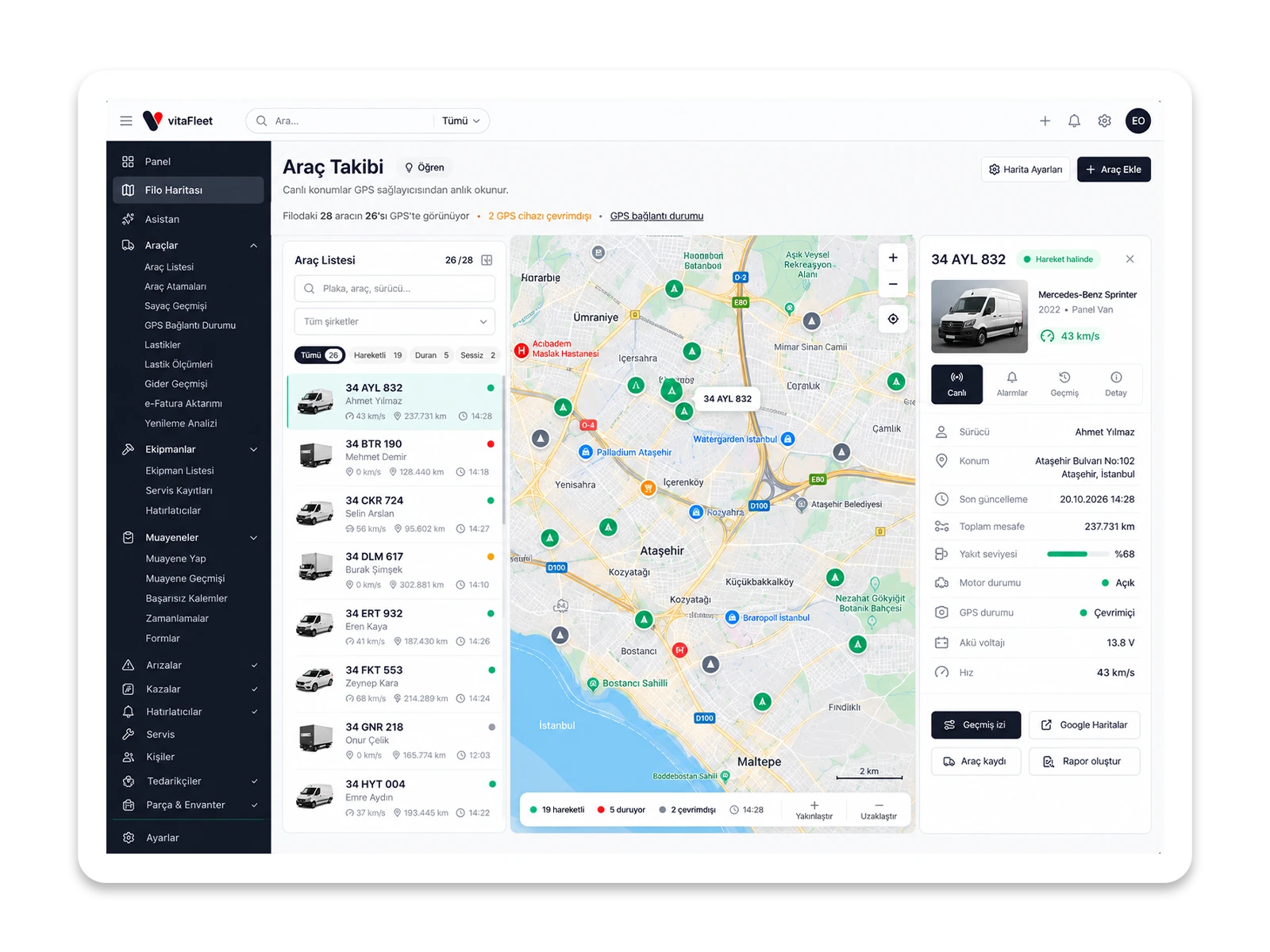
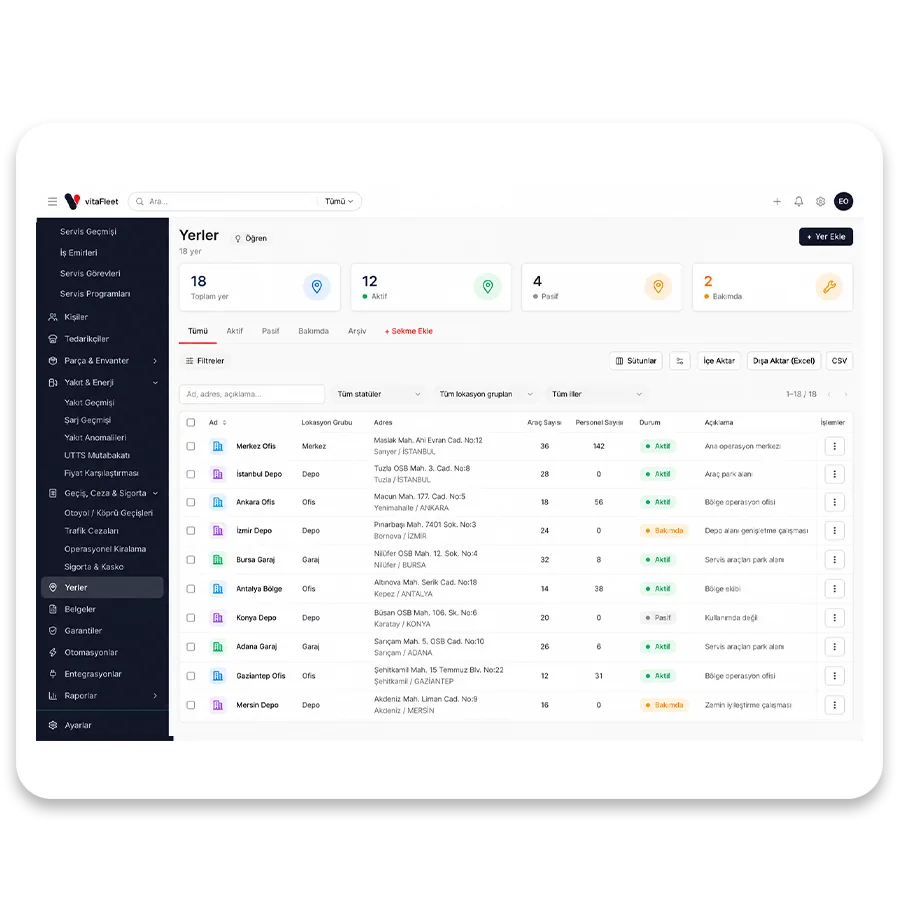
In a fleet with three branches, the first step is to define the branches as groups under Vehicle Groups in Settings. The fleet manager opens the vehicle list, selects rows, and fills in the Group field from the bulk actions menu; fields left blank stay unchanged. From then on, you can narrow the list with the Group filter, arrange columns with ⚙, and keep the layout as a saved view. A branch lead filters to their own group, while headquarters removes the filter and sees everything. When a vehicle is transferred from one branch to another, its group is changed; the change is written to the activity log and appears, by date range, in the Group Changes report. So the question of when a vehicle moved to which location is answered by the record, not by memory. You don't need a separate Excel file for this: the list, the report, and the history all come from the same record.
Saved view. The group filter, columns, and sort order are saved as a view, so each branch opens its own list in one click. Vehicle tags add a second way to split the list.
Bulk transfer. Select several vehicles and move them to a new group in a single action.
Change trail. Every group change is written to the activity log, so there is always a record of who moved what.
History in the report. The Group Changes report lists moves by change date and includes every move within the selected range.